> ## Documentation Index
> Fetch the complete documentation index at: https://docs.spikeapi.com/llms.txt
> Use this file to discover all available pages before exploring further.
# Configuration
> Essential application settings for API integration
Configure your Spike API application through the [admin console](https://admin.spikeapi.com/).
## Credentials
Access your application credentials from the admin console to authenticate and secure your API integration.
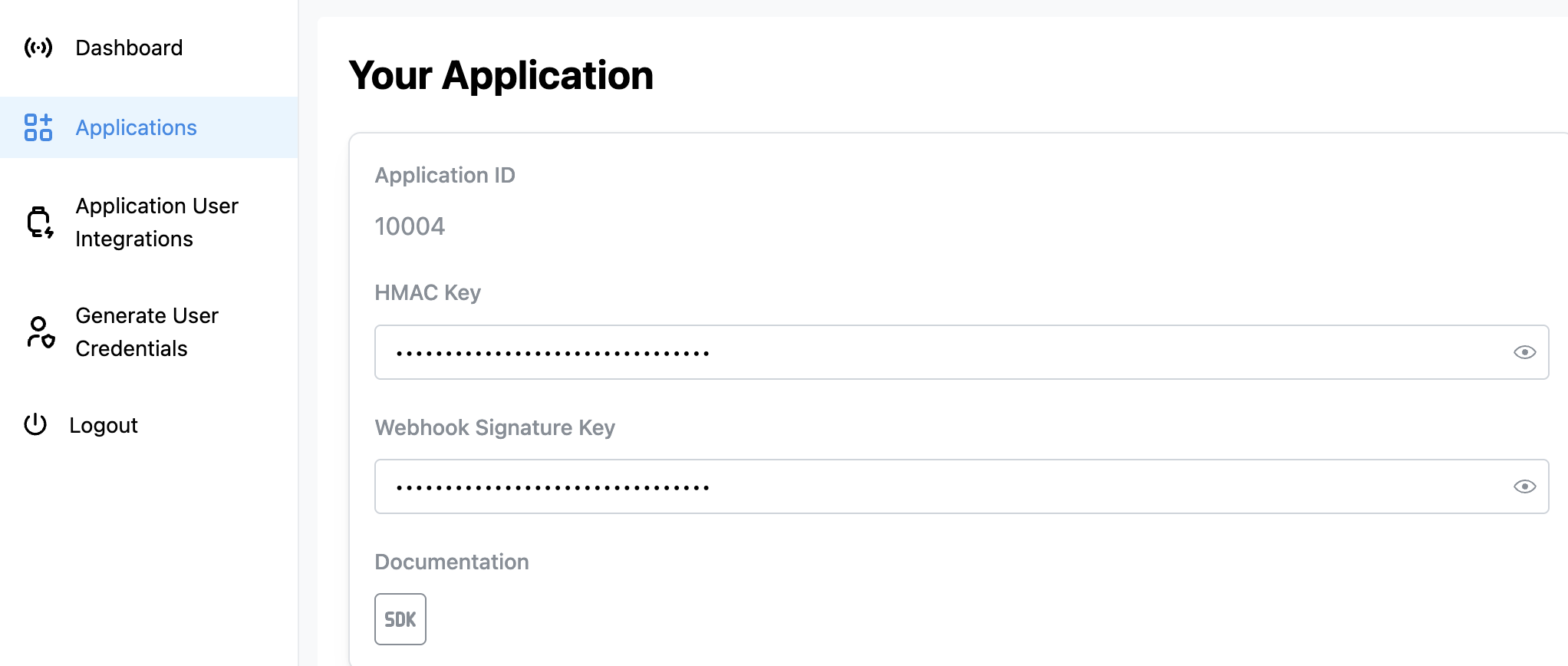 ### Application ID
**Generated by Spike API** — Your unique application identifier used in all API requests. Required for [authentication](/api-docs/authentication) and identifying your app in API calls. Visible in admin console.
### HMAC Key
**Generated by Spike API** — Required for user authentication. Use this key to generate HMAC-SHA256 signatures of user IDs in your [authentication flow](/api-docs/authentication). Found in the admin console under your application settings.
### Webhook Signature Key
**Generated by Spike API** — Required for webhook security. Use this key to verify that [webhook](/api-docs/webhooks) requests genuinely come from Spike API by validating the `X-Body-Signature` header. Found in admin console under your application settings.
## Integration Settings
Configure your application settings through the admin console to customize integration behavior and data handling.
### Application ID
**Generated by Spike API** — Your unique application identifier used in all API requests. Required for [authentication](/api-docs/authentication) and identifying your app in API calls. Visible in admin console.
### HMAC Key
**Generated by Spike API** — Required for user authentication. Use this key to generate HMAC-SHA256 signatures of user IDs in your [authentication flow](/api-docs/authentication). Found in the admin console under your application settings.
### Webhook Signature Key
**Generated by Spike API** — Required for webhook security. Use this key to verify that [webhook](/api-docs/webhooks) requests genuinely come from Spike API by validating the `X-Body-Signature` header. Found in admin console under your application settings.
## Integration Settings
Configure your application settings through the admin console to customize integration behavior and data handling.
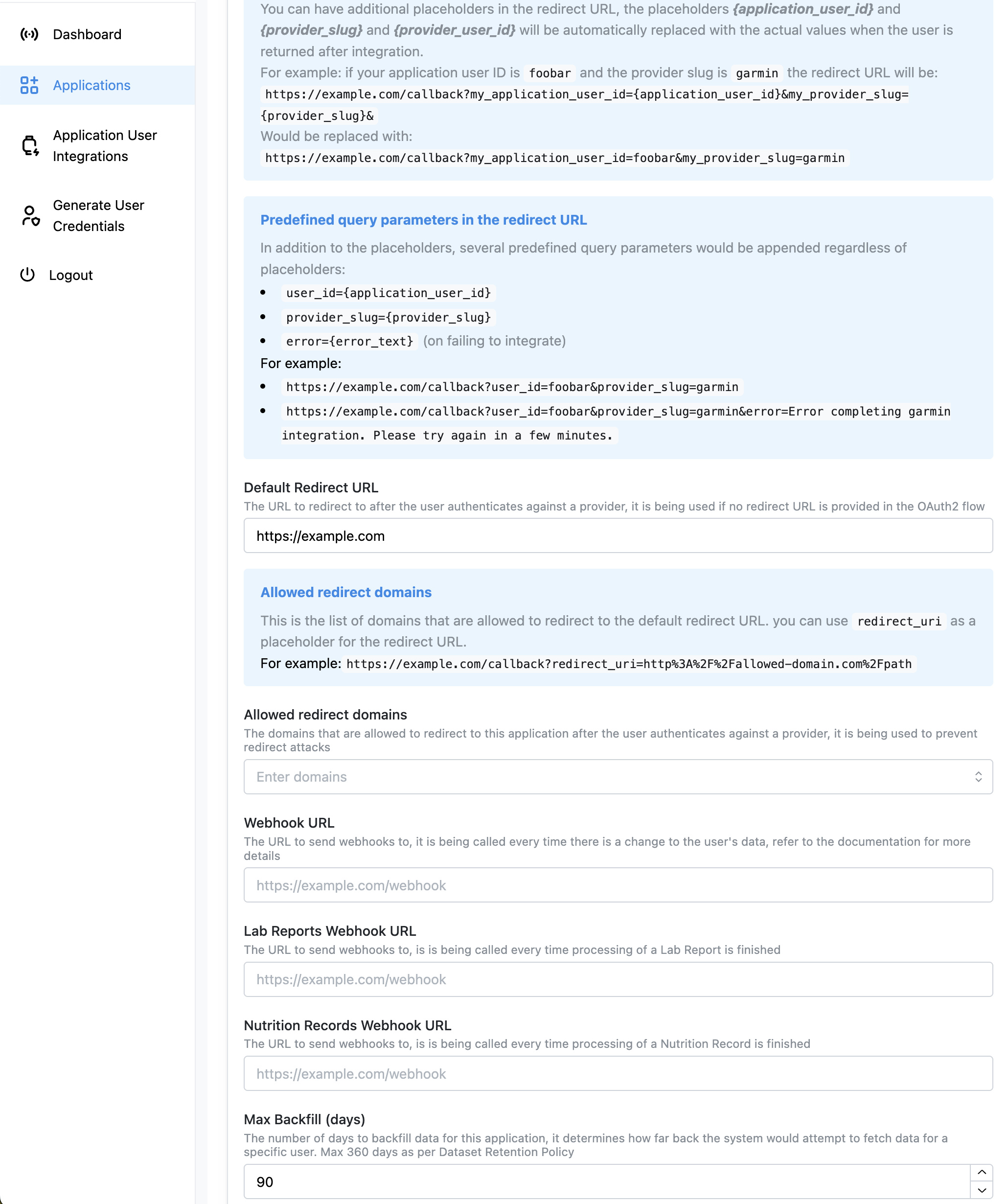 ### Default Redirect URL
**Configured by you** — Fallback URL when users complete [provider integration](/api-docs/provider_integration) without a specific redirect URL. Use this to handle successful connections and show integration status to users. Set in admin console.
**Placeholders:**
* `{application_user_id}` - Your user ID
* `{provider_slug}` - Provider name (e.g., "garmin", "fitbit")
* `{provider_user_id}` - Provider's user ID
**Auto-appended parameters:**
* `user_id={application_user_id}`
* `provider_slug={provider_slug}`
* `error={error_text}` (on failure)
### Allowed Redirect Domains
**Configured by you** — Security whitelist that prevents redirect attacks. Required when you want to use dynamic redirect URLs in your [provider integration](/api-docs/provider_integration) requests (e.g., mobile deep links, different app sections). Set in admin console.
### Main Webhook URL
**Configured by you** — Receive real-time notifications when user data changes. Essential for keeping your app synchronized with health data updates from providers like Garmin, Fitbit, etc. Set in admin console. Must respond with HTTP 200 within 30 seconds.
### Max Backfill (days)
**Configured by you** — Controls how much historical data to fetch when users first connect a provider. Higher values give more historical context but increase processing time and API usage. Set in admin console.
**Limits:** Max 90 days, cannot exceed Dataset Retention Policy.
**Provider limits:** See [Provider limits](/technical-references/application_configuration#data-backfill-configuration) for more details.
SDK providers require manual extraction. See [SDK backfill docs](/sdk-docs/ios/backfill).
## Complete Reference
See [Application Configuration](/technical-references/application_configuration) for detailed settings and security practices.
### Default Redirect URL
**Configured by you** — Fallback URL when users complete [provider integration](/api-docs/provider_integration) without a specific redirect URL. Use this to handle successful connections and show integration status to users. Set in admin console.
**Placeholders:**
* `{application_user_id}` - Your user ID
* `{provider_slug}` - Provider name (e.g., "garmin", "fitbit")
* `{provider_user_id}` - Provider's user ID
**Auto-appended parameters:**
* `user_id={application_user_id}`
* `provider_slug={provider_slug}`
* `error={error_text}` (on failure)
### Allowed Redirect Domains
**Configured by you** — Security whitelist that prevents redirect attacks. Required when you want to use dynamic redirect URLs in your [provider integration](/api-docs/provider_integration) requests (e.g., mobile deep links, different app sections). Set in admin console.
### Main Webhook URL
**Configured by you** — Receive real-time notifications when user data changes. Essential for keeping your app synchronized with health data updates from providers like Garmin, Fitbit, etc. Set in admin console. Must respond with HTTP 200 within 30 seconds.
### Max Backfill (days)
**Configured by you** — Controls how much historical data to fetch when users first connect a provider. Higher values give more historical context but increase processing time and API usage. Set in admin console.
**Limits:** Max 90 days, cannot exceed Dataset Retention Policy.
**Provider limits:** See [Provider limits](/technical-references/application_configuration#data-backfill-configuration) for more details.
SDK providers require manual extraction. See [SDK backfill docs](/sdk-docs/ios/backfill).
## Complete Reference
See [Application Configuration](/technical-references/application_configuration) for detailed settings and security practices.