> ## Documentation Index
> Fetch the complete documentation index at: https://docs.spikeapi.com/llms.txt
> Use this file to discover all available pages before exploring further.
# Desktop Chat Clients
> Local testing setup for exploring Spike MCP capabilities through desktop chat clients.
This guide is for **local testing and experimentation only**. For production integrations, see the [Implementation Guide](/mcp-docs/implementation) for complete examples with OpenAI and Anthropic.
Desktop chat clients like Claude Desktop provide an easy way to test MCP capabilities and experiment with health data queries locally.
## Claude Desktop Setup
Download Claude Desktop from [https://claude.ai/download](https://claude.ai/download).
### Step 1: Install MCP Proxy
Install the open-source MCP proxy tool:
```bash theme={null}
brew install mcp-proxy
```
### Step 2: Configure Claude Desktop
1. Open Claude Desktop and navigate to **Settings** → **Developer**
2. Click the button to edit the configuration file
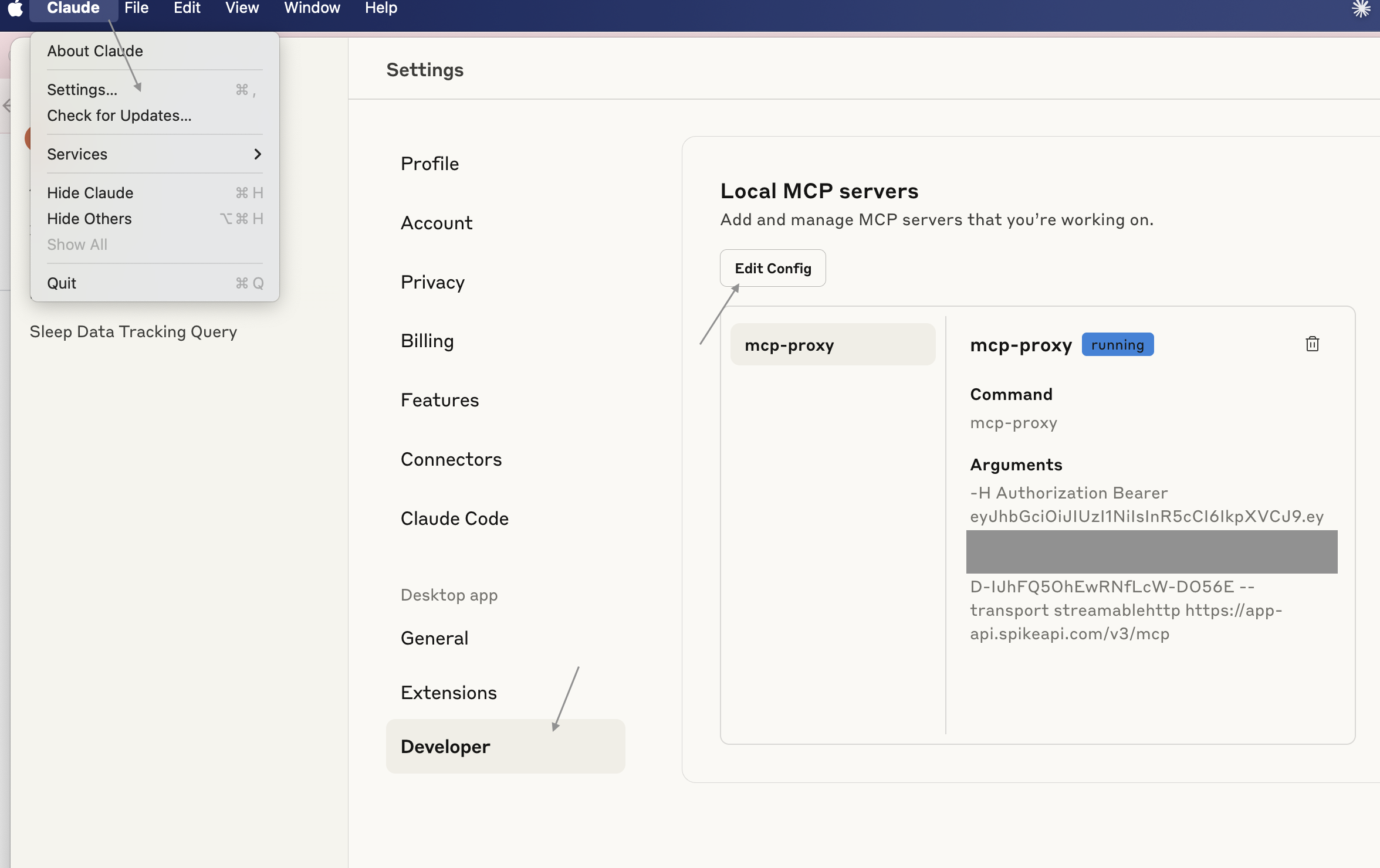 3. Add the following configuration to the file (replace `` with your actual token):
```json theme={null}
{
"mcpServers": {
"mcp-proxy": {
"command": "mcp-proxy",
"args": [
"-H",
"Authorization",
"Bearer ",
"--transport",
"streamablehttp",
"https://app-api.spikeapi.com/v3/mcp"
]
}
}
}
```
4. Save the file and restart Claude Desktop
### Step 3: Test the Connection
Try a simple query to verify everything is working:
```
How well did I sleep last night?
```
You should see the `query_sleep` tool being used and may be prompted for approval:
3. Add the following configuration to the file (replace `` with your actual token):
```json theme={null}
{
"mcpServers": {
"mcp-proxy": {
"command": "mcp-proxy",
"args": [
"-H",
"Authorization",
"Bearer ",
"--transport",
"streamablehttp",
"https://app-api.spikeapi.com/v3/mcp"
]
}
}
}
```
4. Save the file and restart Claude Desktop
### Step 3: Test the Connection
Try a simple query to verify everything is working:
```
How well did I sleep last night?
```
You should see the `query_sleep` tool being used and may be prompted for approval:
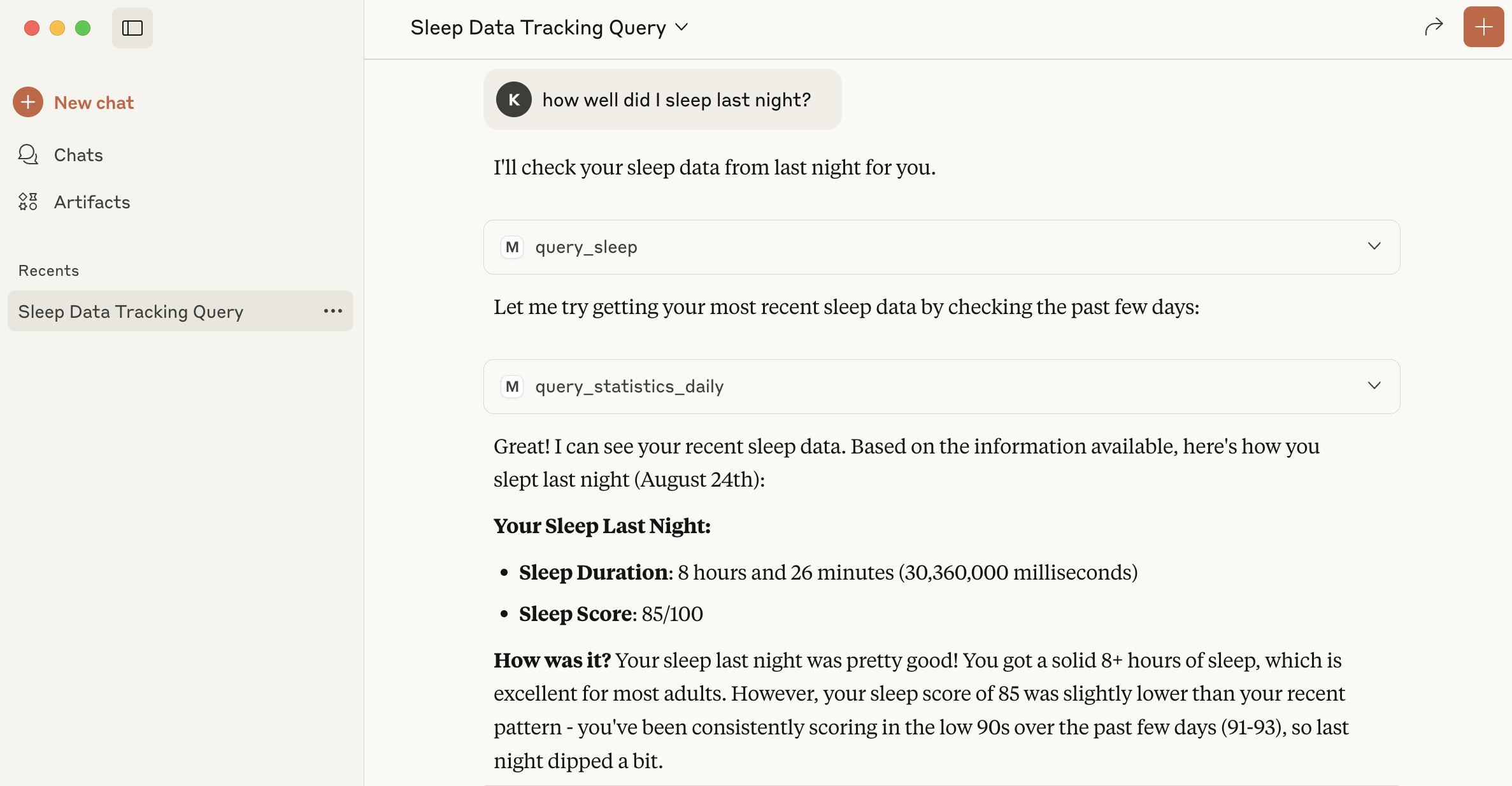
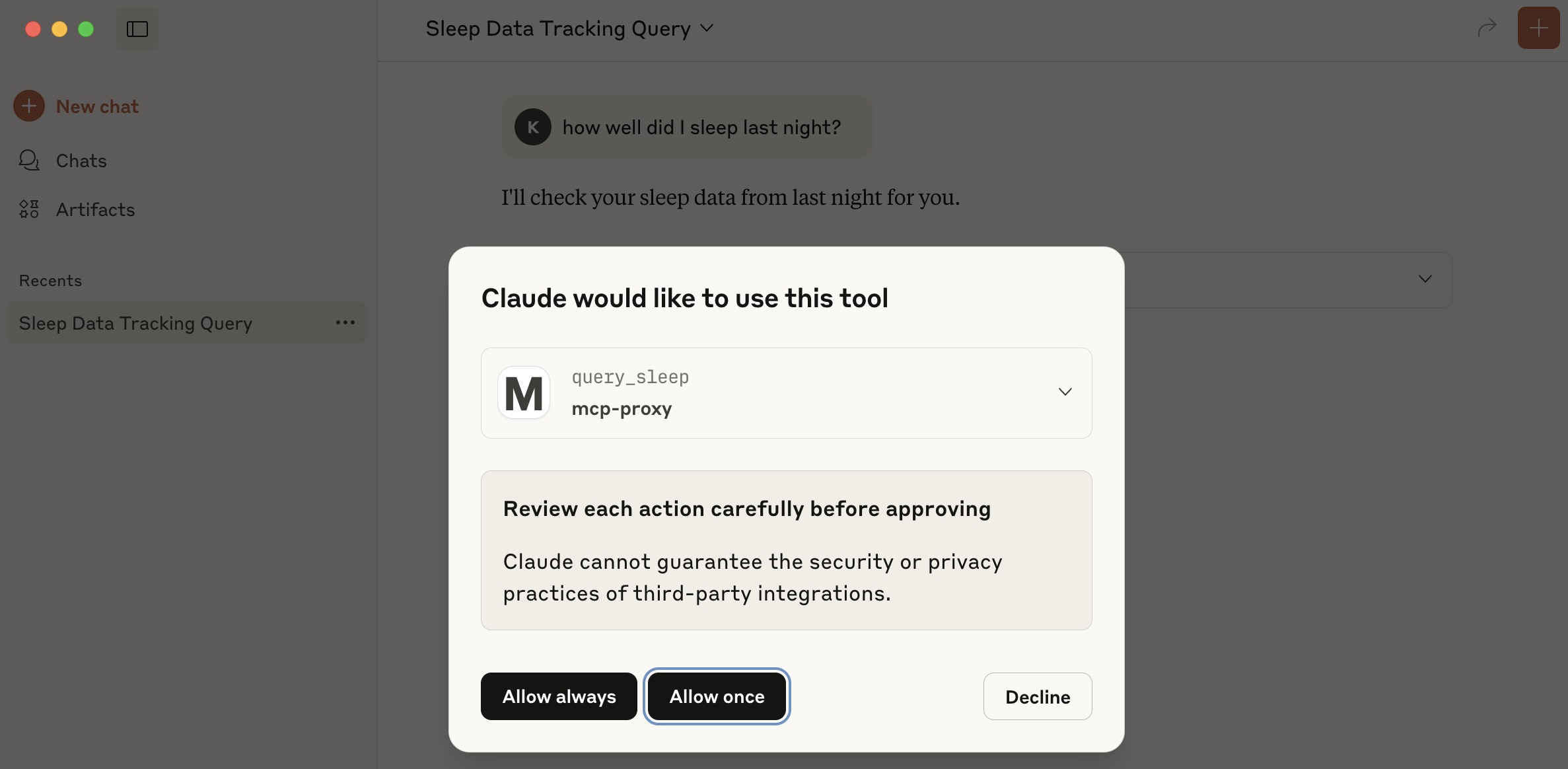 Allow the connection to get personalized results based on your JWT token:
 ## Next Steps
For production integrations and complete implementation examples, see the [Implementation Guide](/mcp-docs/implementation) which includes:
* Complete OpenAI integration examples (Python, Go, Node.js, cURL)
* Anthropic/Claude integration examples
* Authentication setup
* Error handling
* Available MCP tools and endpoints
## Next Steps
For production integrations and complete implementation examples, see the [Implementation Guide](/mcp-docs/implementation) which includes:
* Complete OpenAI integration examples (Python, Go, Node.js, cURL)
* Anthropic/Claude integration examples
* Authentication setup
* Error handling
* Available MCP tools and endpoints